Digital loyalty cards
Prepare the card text, colors and branding for your loyalty program. Customers save the card in TapTapp and present its code. Supported cards display points, rewards and expiry dates.
Choose your card program
Choose a loyalty, membership or ticket program and prepare your card branding. Customers add the card to TapTapp and present its code. Your business account manages cards, authorized validators and card status. Features and integration needs depend on the program; review pricing or contact TapTapp to discuss your setup.
Prepare the card text, colors and branding for your loyalty program. Customers save the card in TapTapp and present its code. Supported cards display points, rewards and expiry dates.
Authorized employees activate and validate membership cards. Cardholders and your team can view session counts, points and expiry dates in real time for the supported program.
Create branded digital tickets and arrange API integration where needed. Authorized staff check tickets with a mobile phone at the event. Cardholders can open saved tickets without an internet connection; confirm offline validation conditions for your event.
Assign employees as validators through the business account. Review card status and last use. Choose a standalone setup or arrange an integration with your existing infrastructure.
Arrange monthly or custom reports in PDF, Word or Excel. Use cardholder messages for schedules, events and relevant offers. Discuss reporting and communication requirements with TapTapp for your program.

Set the card text, colors and images for a gym membership, fitness program or coffee shop loyalty card. Prepare different branded cards for the programs your business offers.

Follow supported session and point status alongside your cardholders. Arrange monthly or custom reports in PDF, Word or Excel to review your program.

Send messages about schedules, events and relevant offers. Cardholders can open saved cards and tickets without an internet connection; that does not mean every business operation works offline.

Add a card from the app's list, or scan the QR code or barcode on a supported physical card.
For supported programs, cardholders can view session counts, points and membership expiry dates in the app.

Cardholders who previously added an email can enter the same email on a replacement device to restore their cards.

Customers can use TapTapp for basic card storage without registration. Business card programs have separate pricing and setup requirements.
Sign in or create a business account to add cards and validators and manage your account.
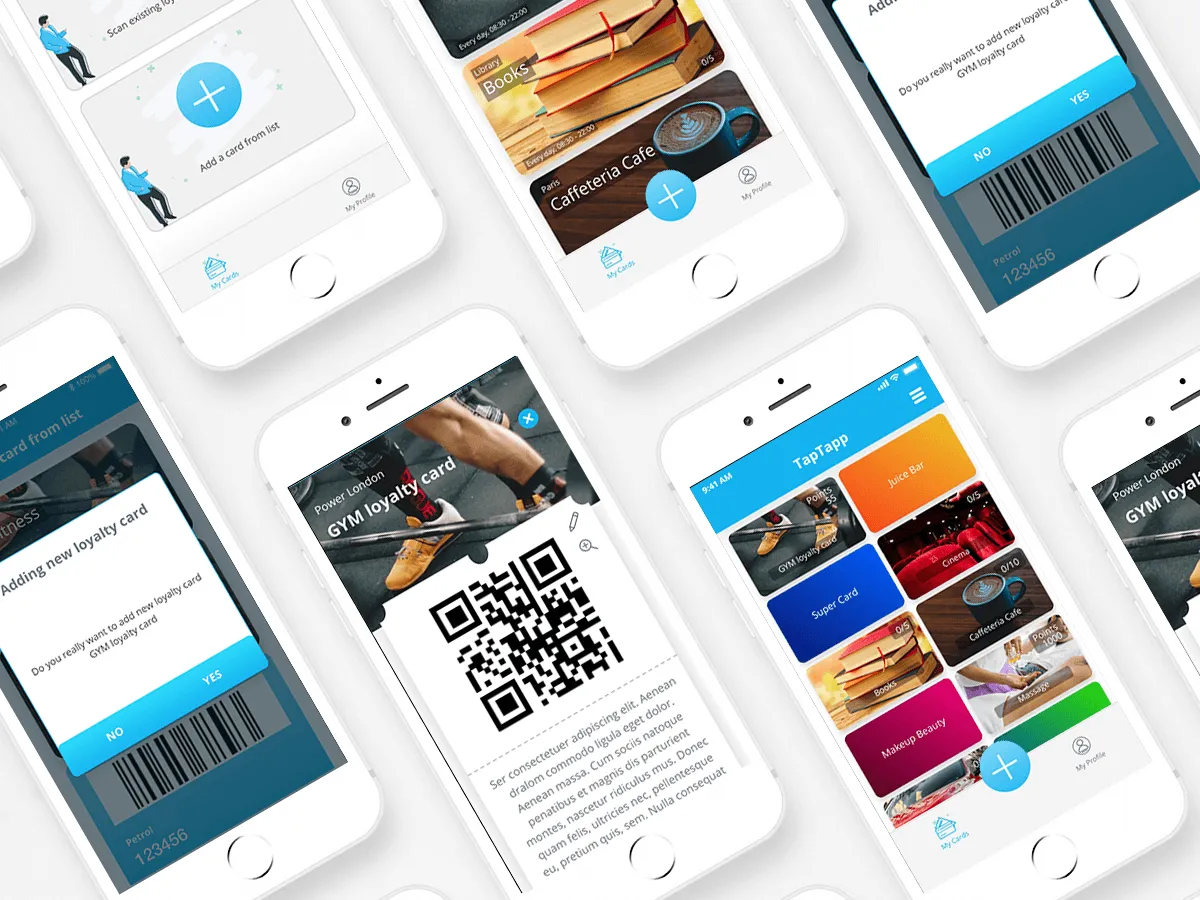
Create cards that can be used as tickets, loyalty cards, or membership cards.
See pricing for tickets, loyalty cards, and memberships.
View pricingAdd employees who can validate your cards.
downloads across Google Play, the App Store, and Huawei AppGallery
of users added a loyalty or membership card
of companies say retention costs less than acquiring new customers
Business setup
Use TapTapp as a standalone card system if you do not have existing infrastructure.
If you already use another system, discuss an integration with TapTapp before choosing the setup for your program.
For information about personal data and your rights, read the privacy policy.

Card branding
Prepare a 450 x 225 pixel card image (width x height).
Use an image without transparent areas or rounded corners.
1. Optional text at the top of the card
2. Optional larger text in the middle
3. Optional text at the bottom
4. TapTapp generates the session counter, such as 2/12 used sessions.
The first three text fields are optional. For example, the Warrior Factory card in the image omits fields 1 and 2. Set the text and background colors for each field. You can add, change or remove card text later, and cardholders see the updated version.

Card list
Give the card a short label so customers can identify it in the app's grid. The label is marked as 1 in the image and is limited to 20 characters. It uses white text on a translucent dark background; this label's colors cannot be changed.

Card details
When a customer opens the card, the next screen shows its QR code. Set the text marked as 1 in the image to explain the card. This text is displayed in black, and its color cannot be changed.


''App really contributed to make the whole place digital and to optimizae system for signing up for training sessions, reduced the crowded reception and made the whole business eaiser. All recomendations!''
Tell us whether you need loyalty cards, memberships or tickets. We can discuss branding, validation, reporting and integration requirements for your business.
BauBau offers a loyalty app for construction-materials stores. See its dedicated product page to explore that retail-specific option.
Explore BauBau loyalty
